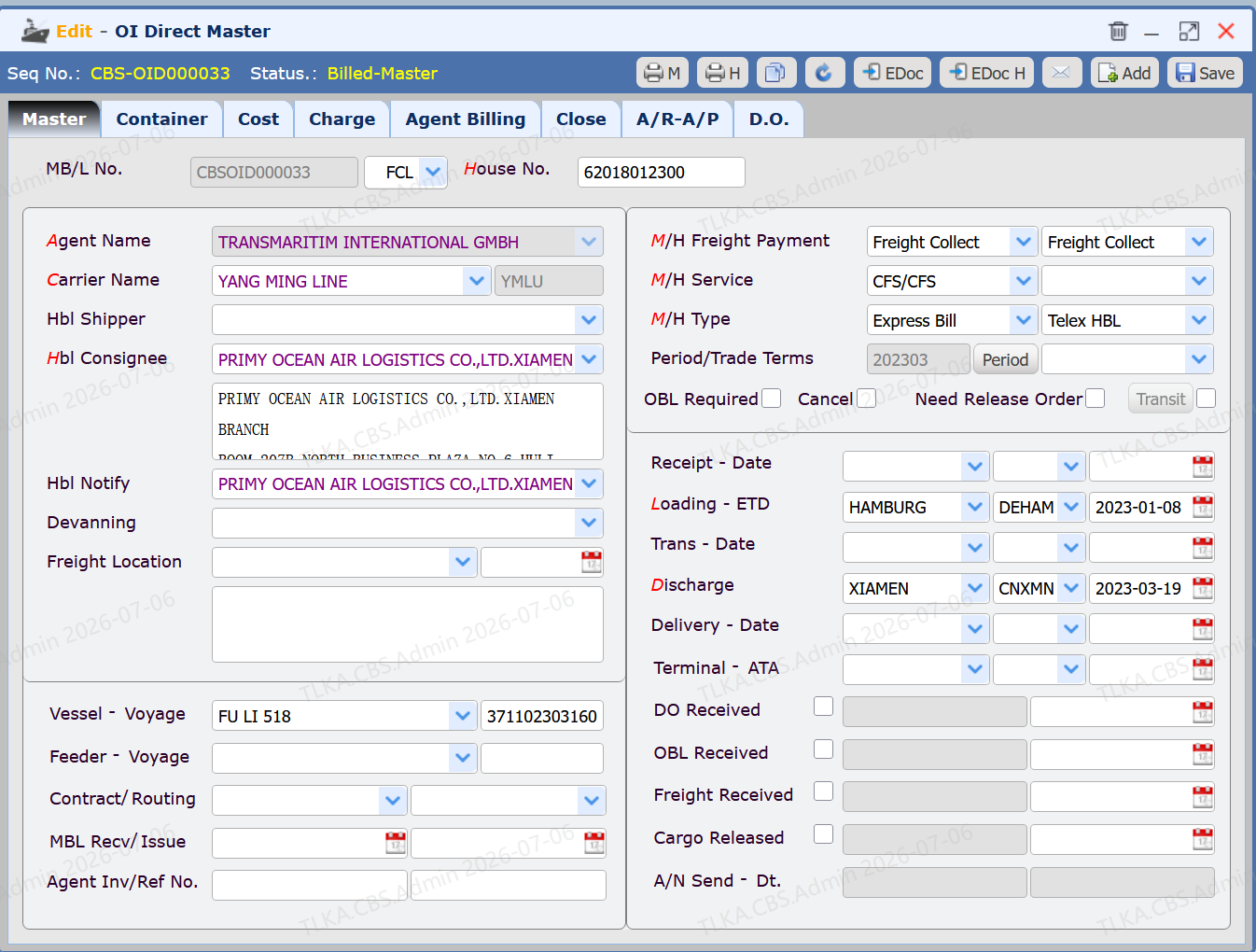
| Open [Sea Import > Input Direct Master Bill], enter master bill data and save
Enter carrier information Enter shipper and consignee information Enter CFS (Container Freight Station) Enter vessel name and voyage number Enter [Payment Method], [Service Mode], and [B/L Type] Enter Port of Loading ETD and Port of Discharge ETA Click Save
* Fields marked in red are mandatory. * If data is filled incorrectly or left blank, a corresponding prompt will appear when clicking Save.
|
Enter Container Information
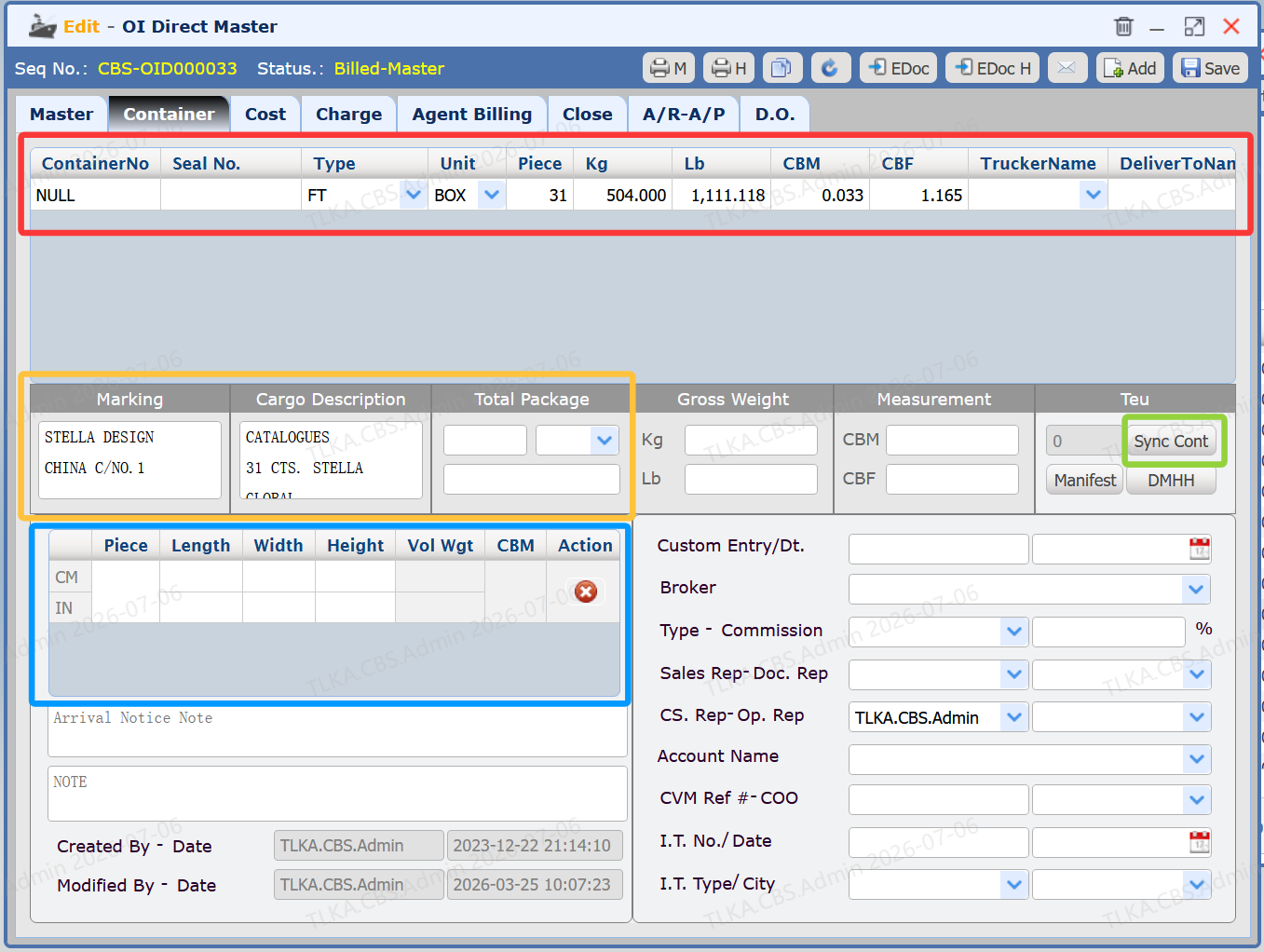
Switch to the [Container] tab Enter the container data provided by the carrier in the red-bordered area Enter MARKING and CARGO DESCRIPTION in the yellow-bordered area; enter cargo quantity and dimensions (L/W/H) in the blue-bordered area Click the [Sync Cont] button to consolidate cargo loading information Click the [Save] button
* Multiple container records can be added.
|
Cost & Charges
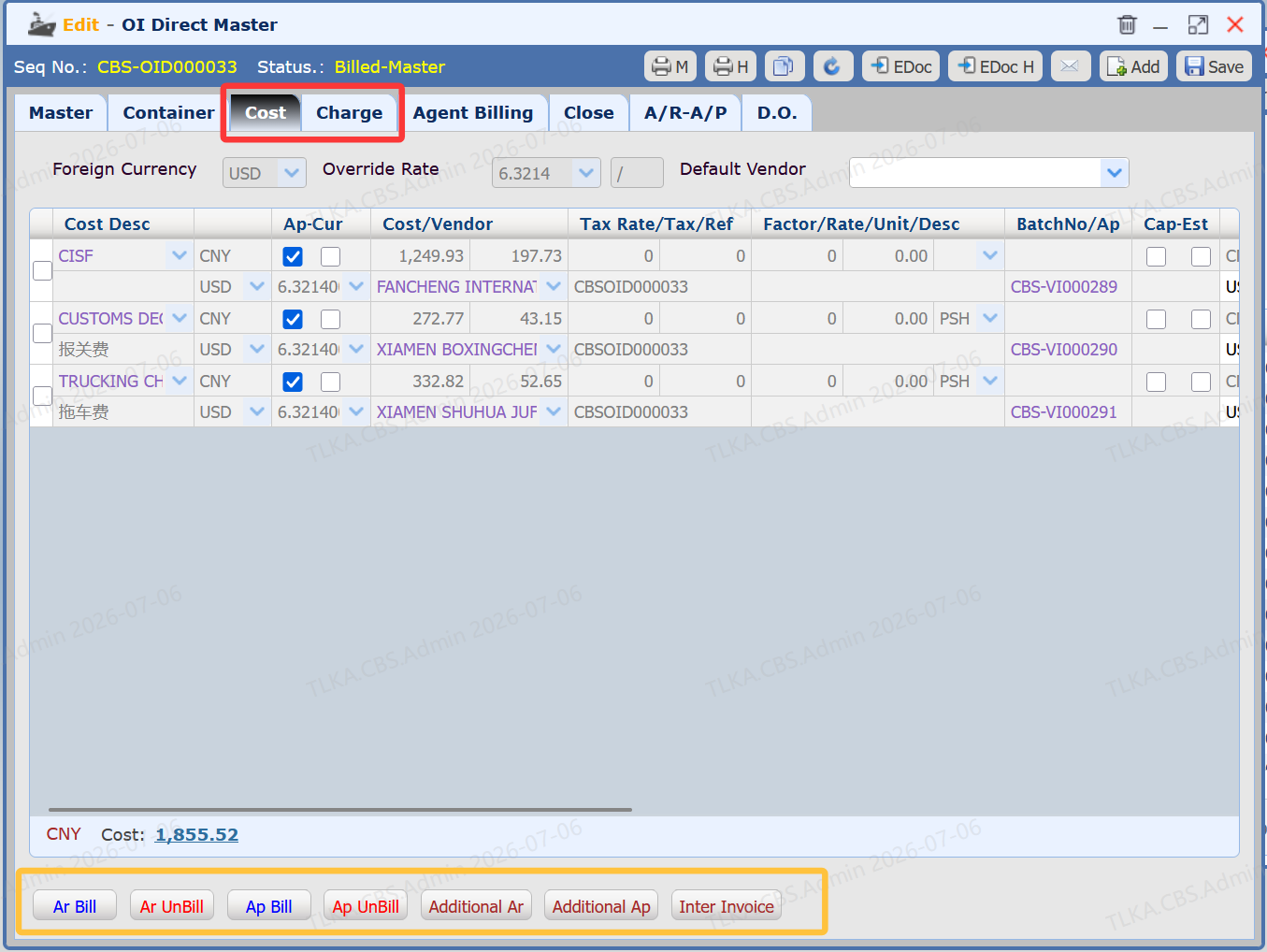
As shown in Figure 1, this is the Cost & Charges interface for the Direct Master Bill For details, please refer to the Charges & Costs page
|
Enter D.O.
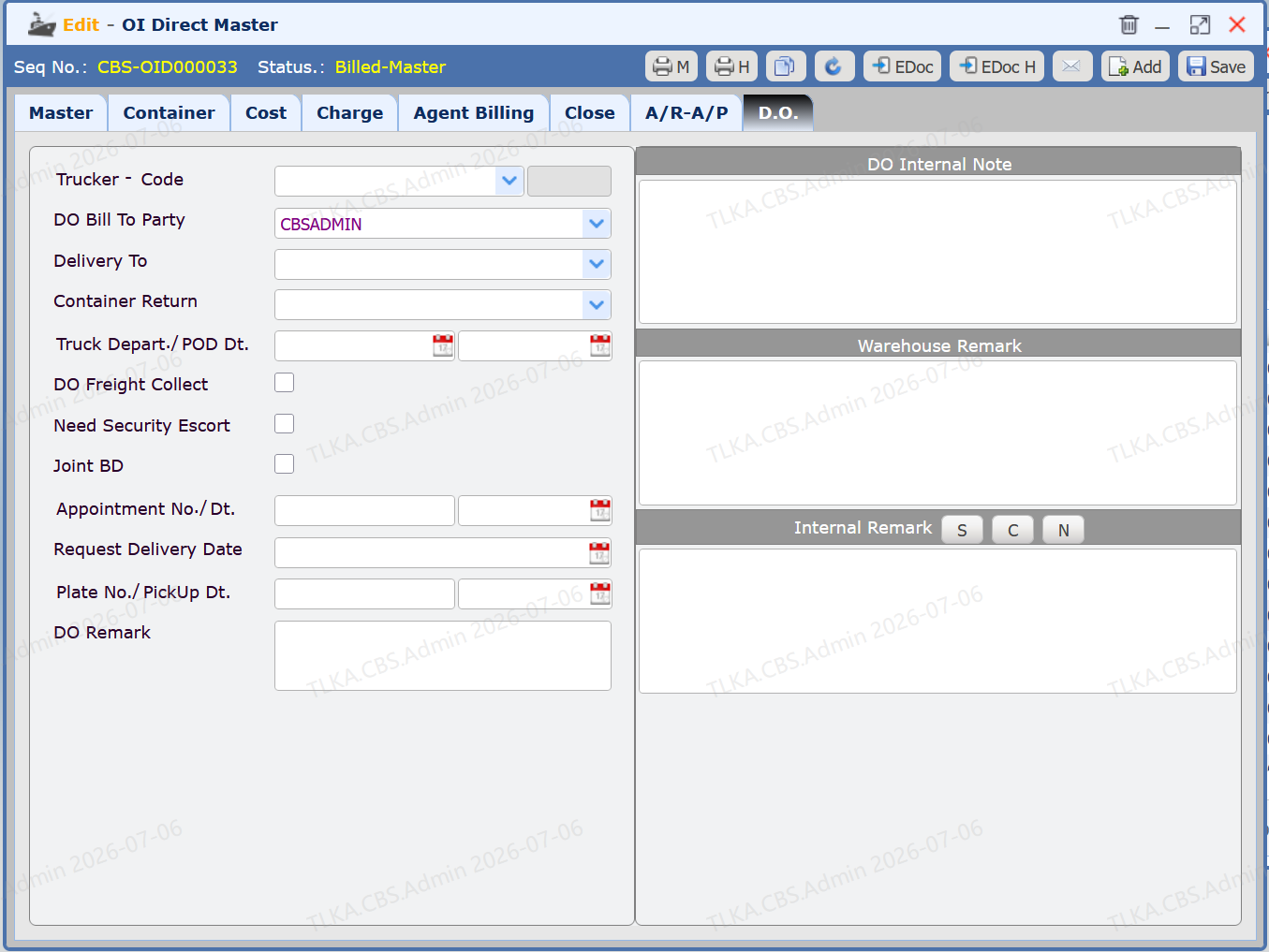
Switch to the [D.O.] tab Enter truck information Click the [Save] button
|