Go to menu「File > Enter Customer / Vendor」,it will pop up a 「Add - PartyProfile」 window
|
Enter Company Information
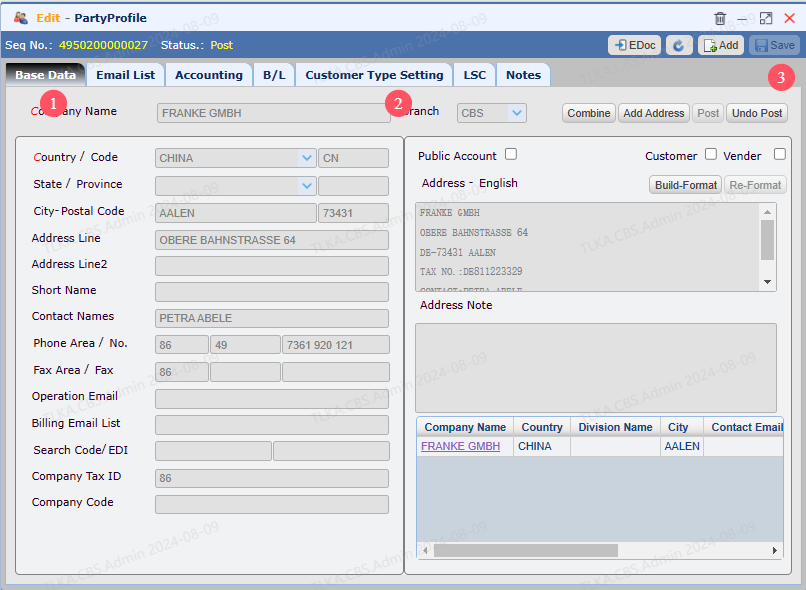
Enter inforamtion on Base Data page Go to Customer Type Setting page to select Customer Type( default type is Customer) Click Save button
* If a company has more than one address, click the the button Add Address
|
Customer Or Vendor
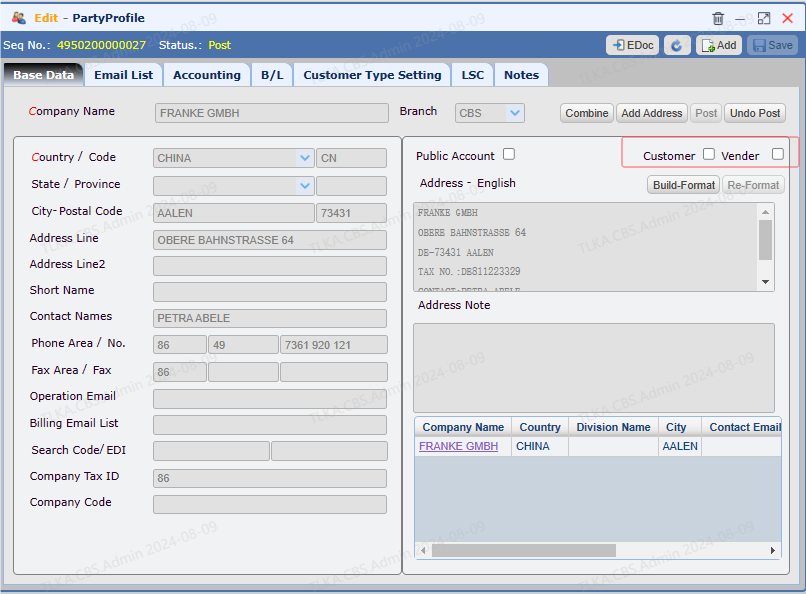
If 【Customer】 or 【Vendor】 is ticked, system will verify if the bill to/payee is a customer or vendor when billing invoices
* 【Customer】and 【Vendor】 will be ticked as default when creating new company profile
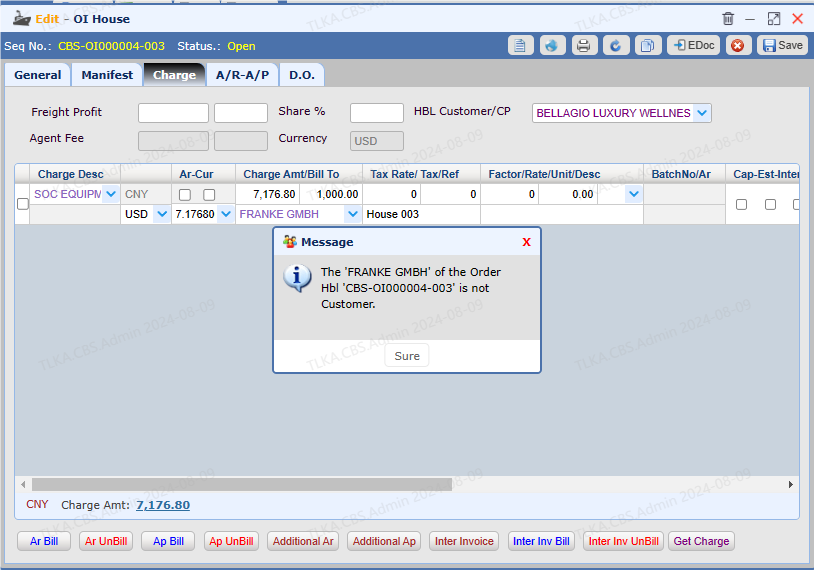
2. When AR Bill or AP Bill, system will prompt an alert message if the bill to or payee is not valid
|
Post The Customer
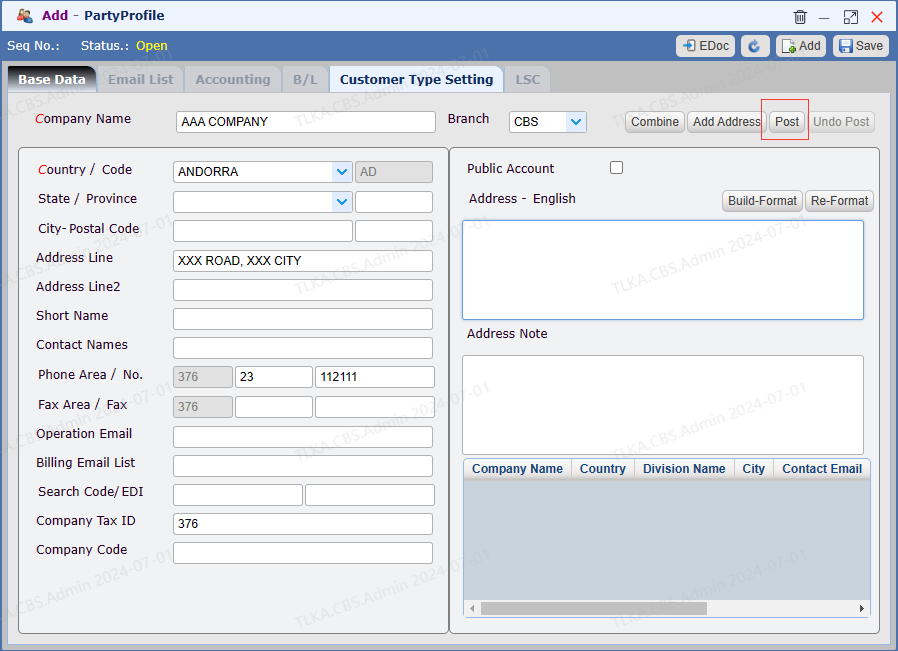
Once the information is finished, click Post button to activate the company
* A company will not be available for use until it's Post
* If anything need to revise after Post, just click Undo Post to open the customer first
|