中文 | EN

更新时间:2026-07-04

Creating Master Bill Data in BINGFMS

* All fields with dropdown functionality must be selected from the dropdown.

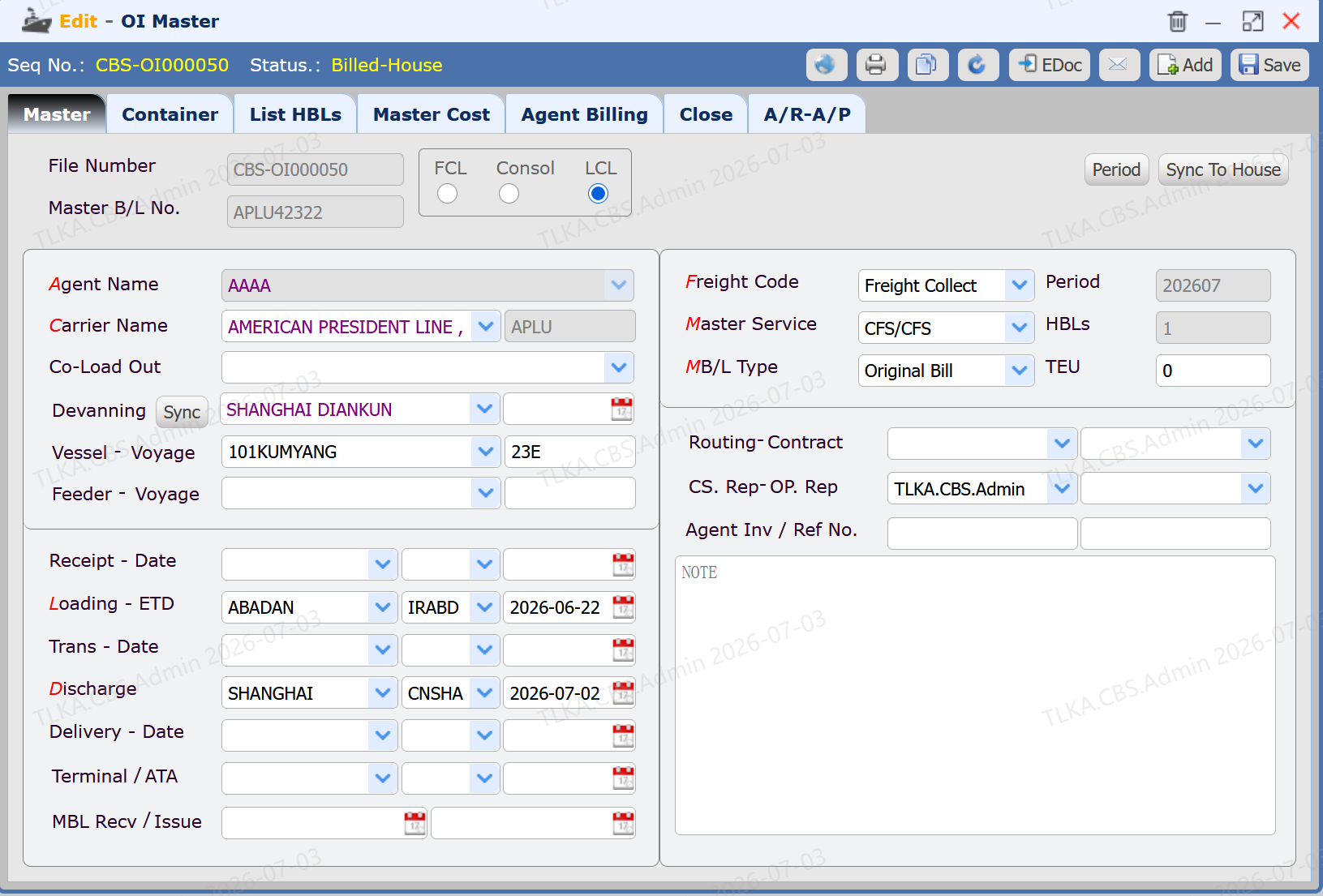
Open [Sea Import > Input Master Bill], enter master bill data and save


  1. Enter the Master Bill number

  2. Enter the master bill information provided by the carrier

  3. Click Save

* Fields starting with red are mandatory.

* If data is filled incorrectly or left blank, a corresponding prompt will appear when clicking Save.

8d3d2d7f7e2d56be8418bedb985b5757.png


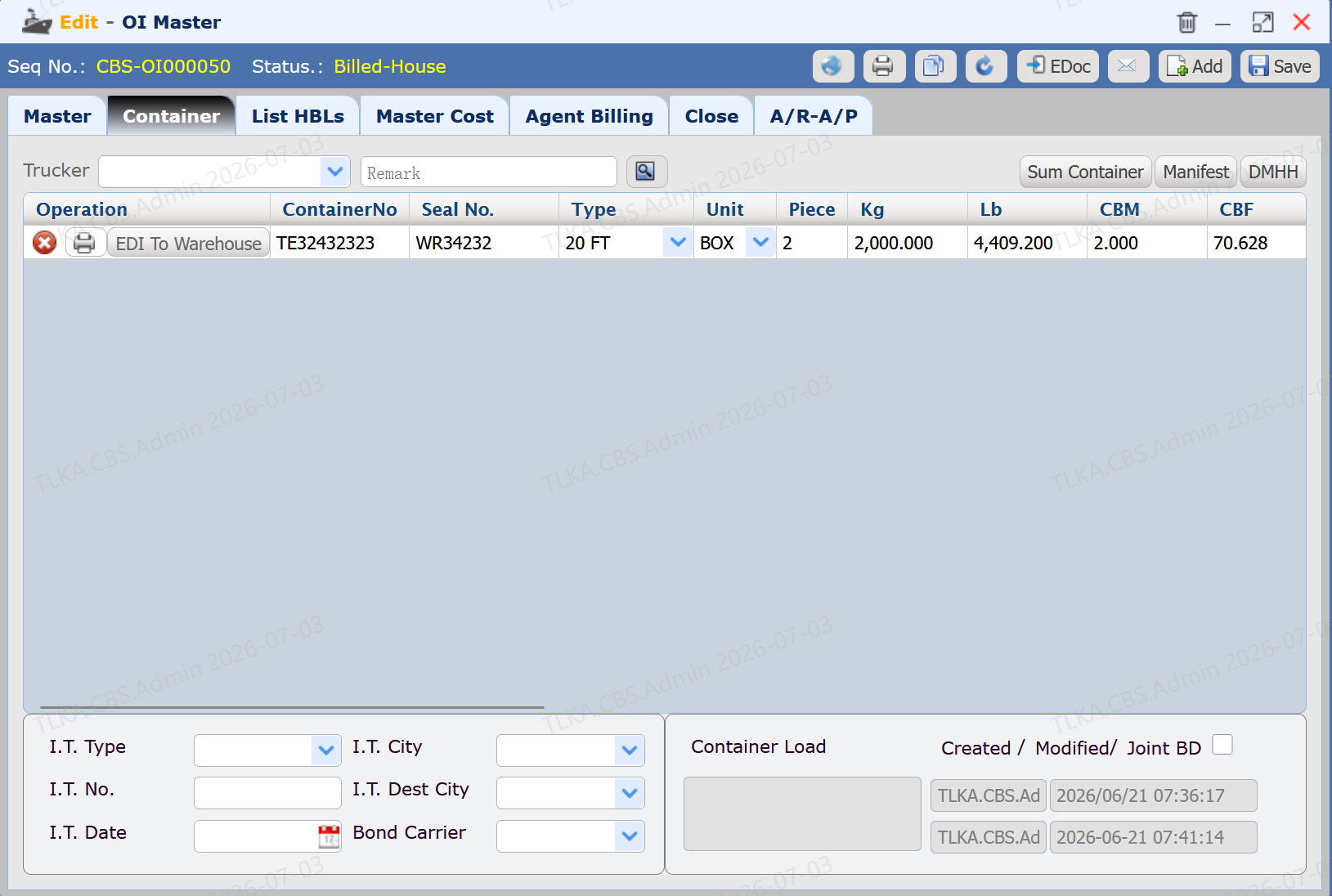
Enter Container Information


  1. Switch to the [Container] tab

  2. Enter "Container No.", "Container Type", "Seal No.", "Unit Code"

  3. Click the [Save] button

* Multiple container records can be added.

cffc9ba14b6c0e9e81e7f315593c36f3.png


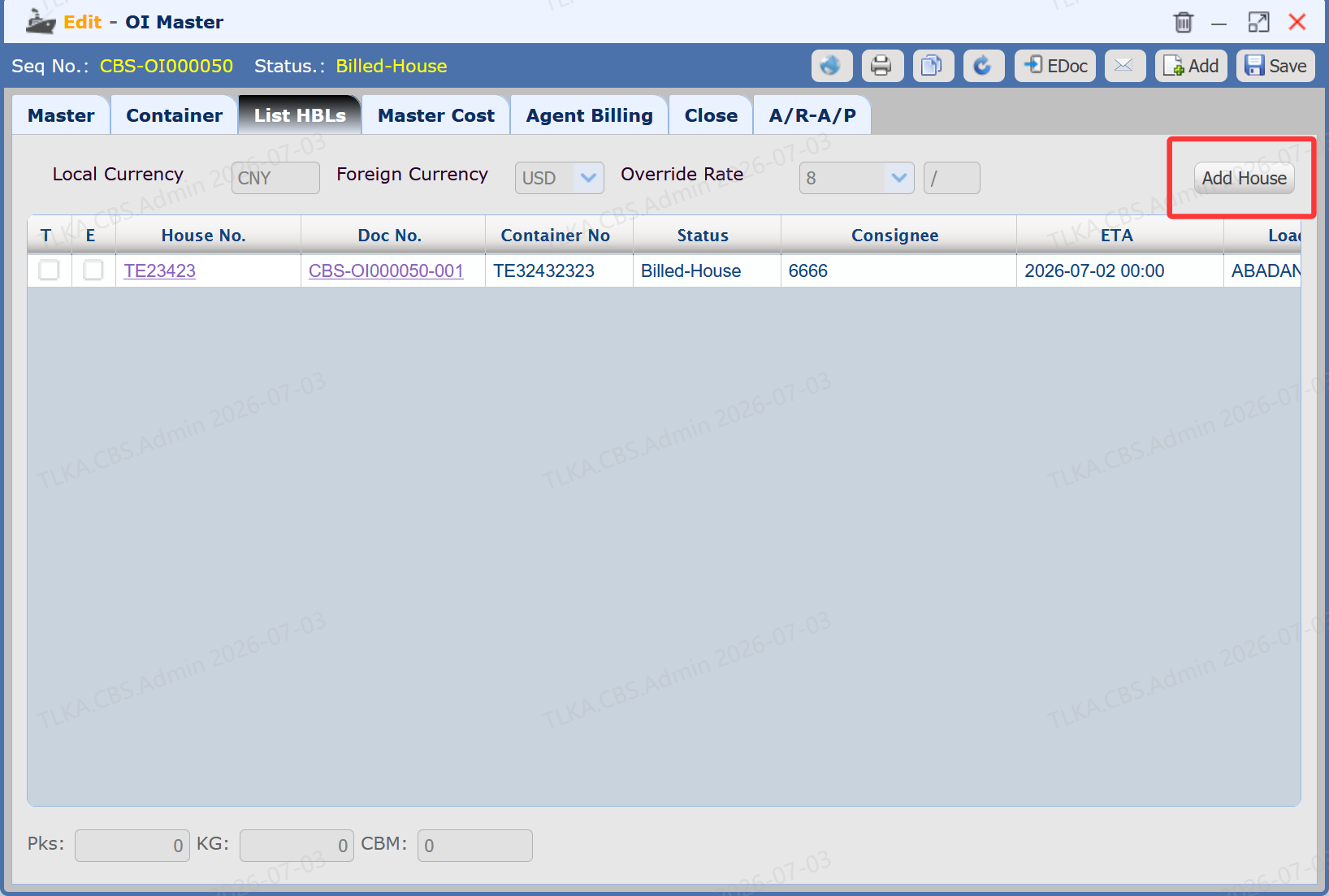
Add House Bill


  1. Switch to the [House Bill List] tab

  2. Click [Add House Bill]

  3. For detailed house bill operations, please refer to the next chapter: Input House Bill

* If multiple house bill records are needed, click the "Add House Bill" button multiple times.

143724df7699ee4d5f86cbb8043eed3b.png


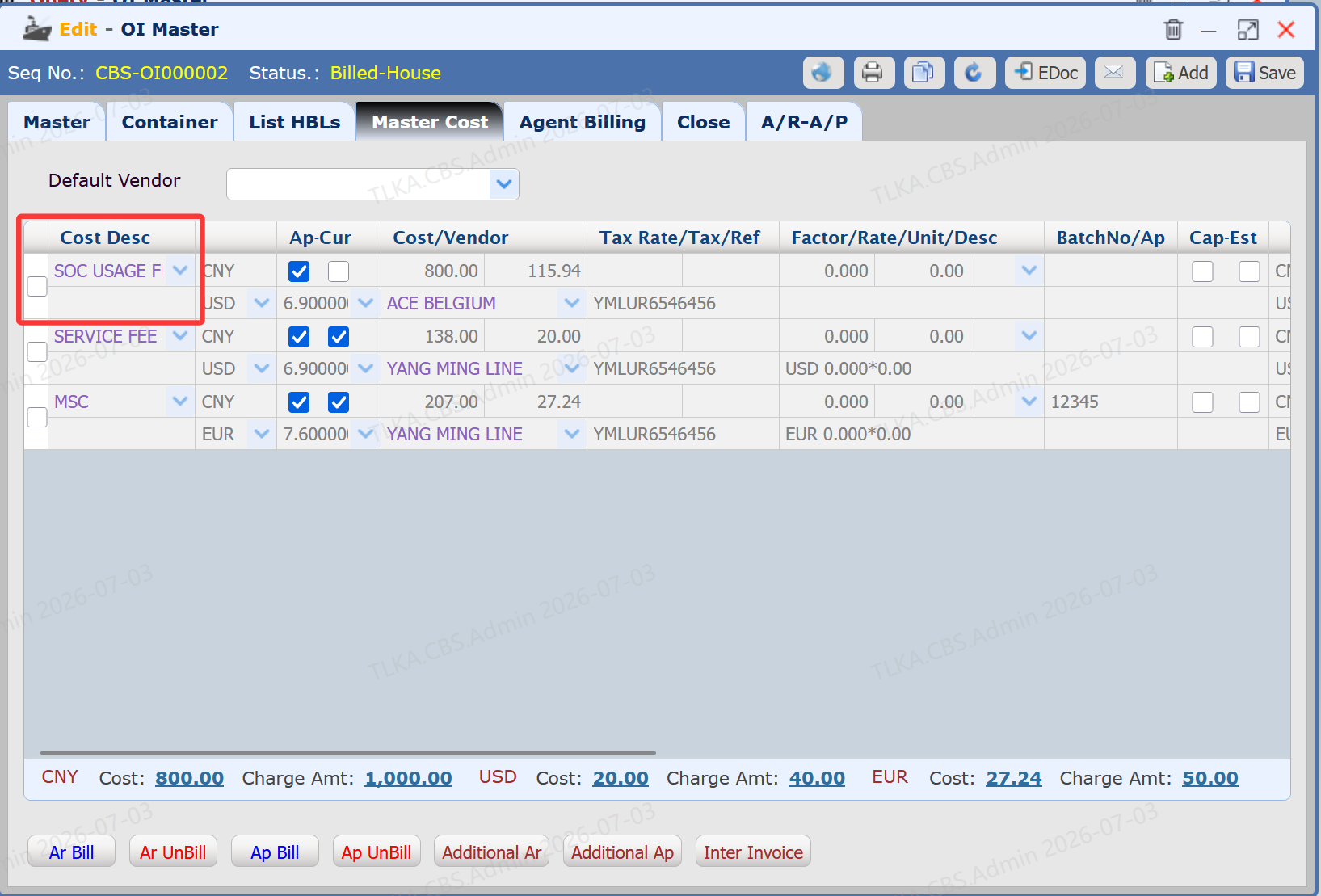
Enter Shipment Master Cost


  1. Click the [Master Cost] tab

  2. Select the required cost item from the dropdown within the red-bordered area

  3. Checking "AP-CUR" indicates that this charge will be settled in foreign currency

  4. "Cost/Vendor" represents the local and foreign currency amounts, as well as the vendor to whom this charge will be paid

33ffff08adac059827cad4e267ad0801.png

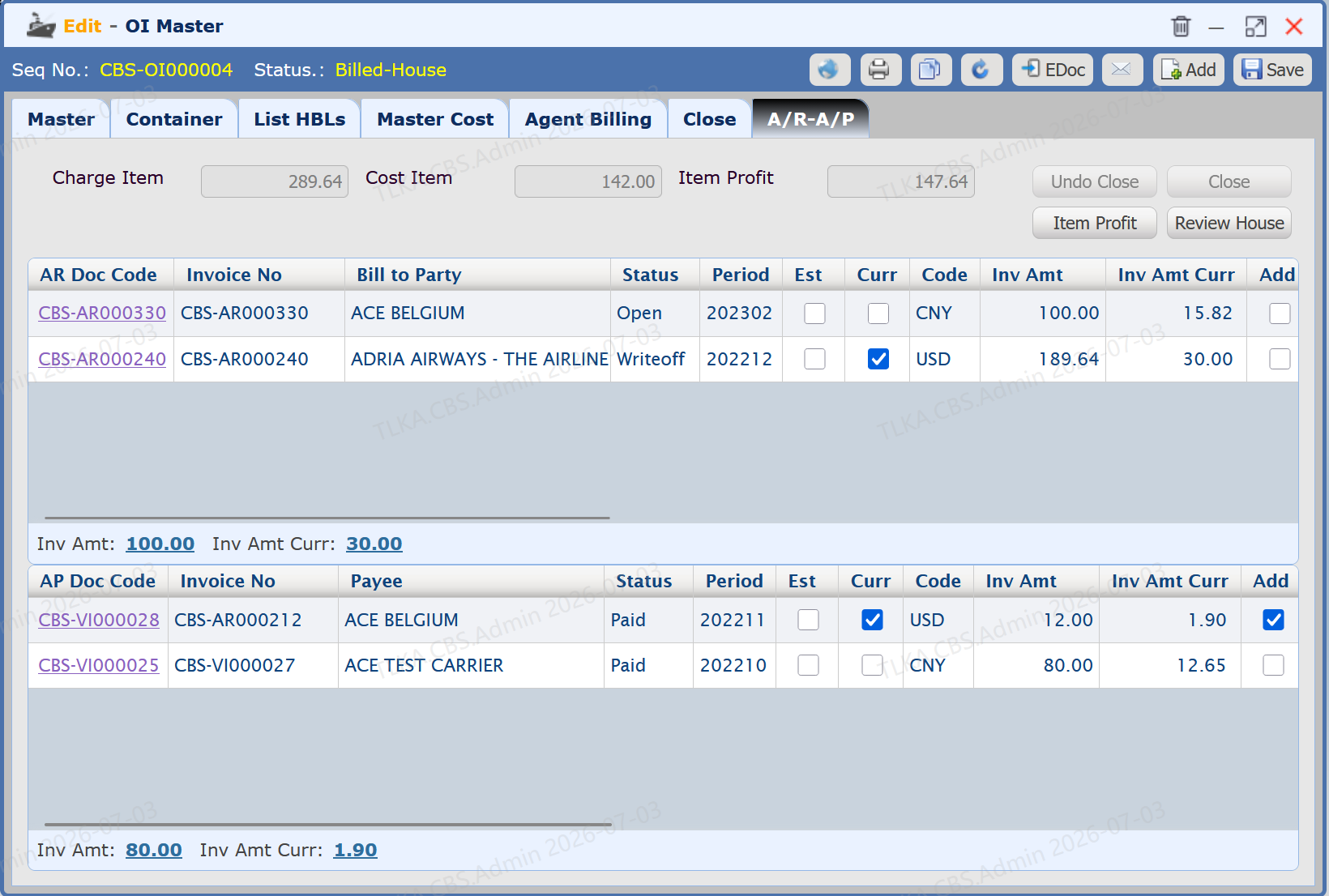
View All AR/AP for This Shipment


  1. Click to enter the [Receivables/Payables] section

  2. The upper section of the page displays Accounts Payable (AP) invoices

  3. The lower section of the page displays Accounts Receivable (AR) invoices

  4. Click the document number to view detailed information

3b606a6a57195b0924a33cf2a95b4841.png